

Configuration Guide
Most of my mods have options you can tweak. Change them in-game through a settings screen, or edit the mod's .json5 config file directly. If you're unsure how, pick your mod loader below and follow the steps!
In-game
Make sure you've installed Mod Menu. This adds the Mods button.
Step 1
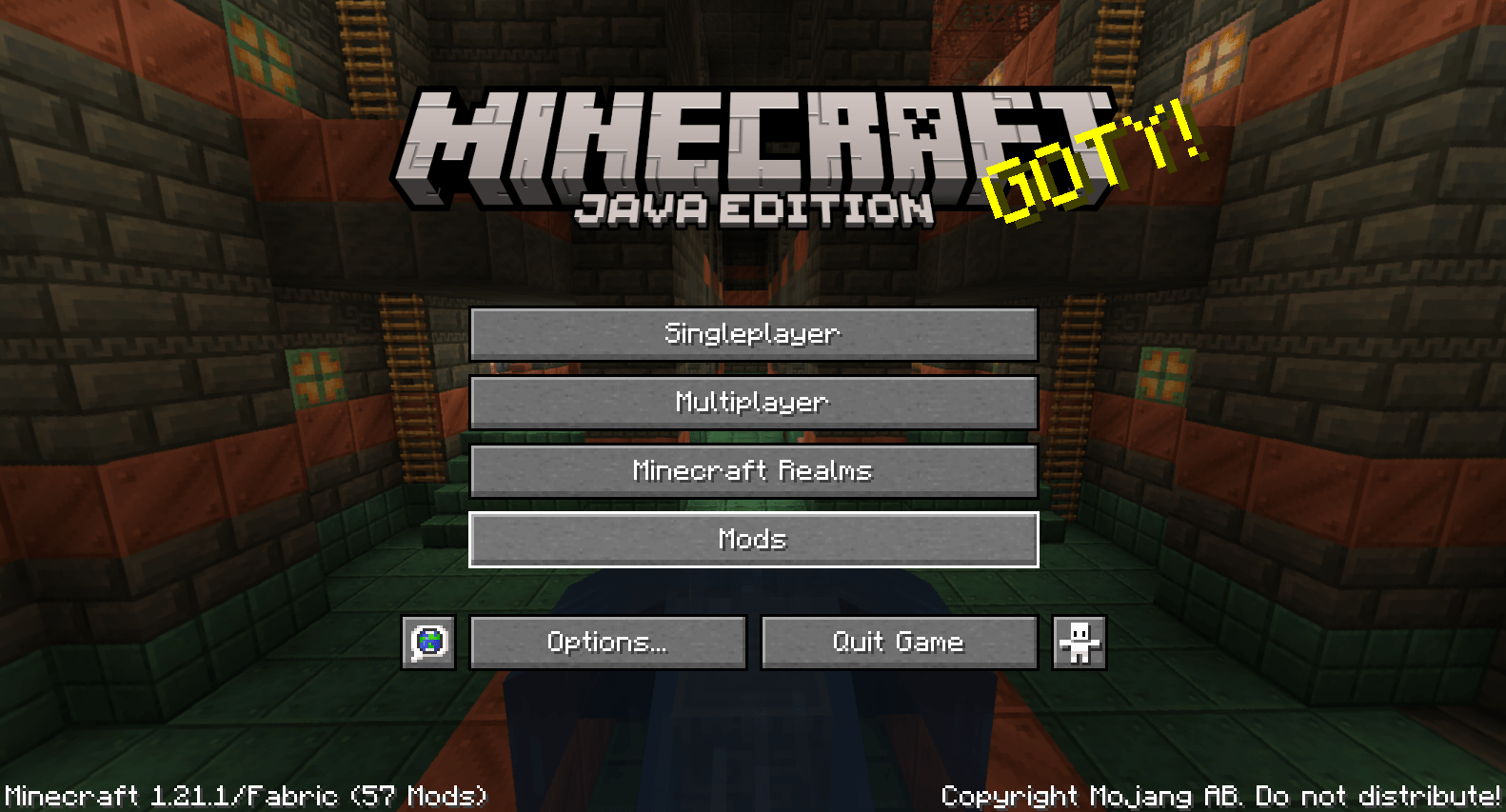
From Minecraft's main menu, click on Mods.
Step 2
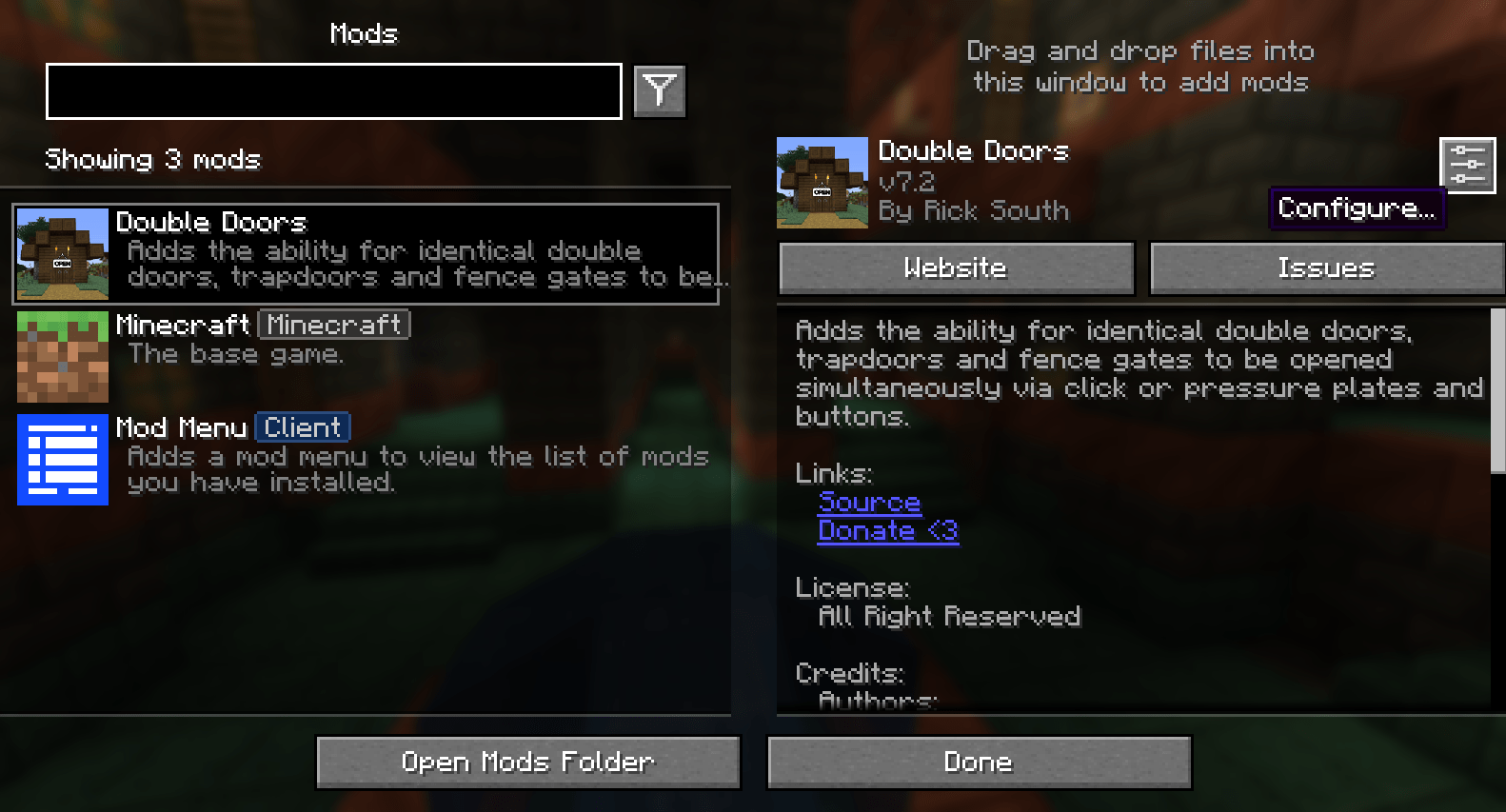
Scroll through the list and select the mod you'd like to configure. Then in the top right, click the Configure button.
Step 3
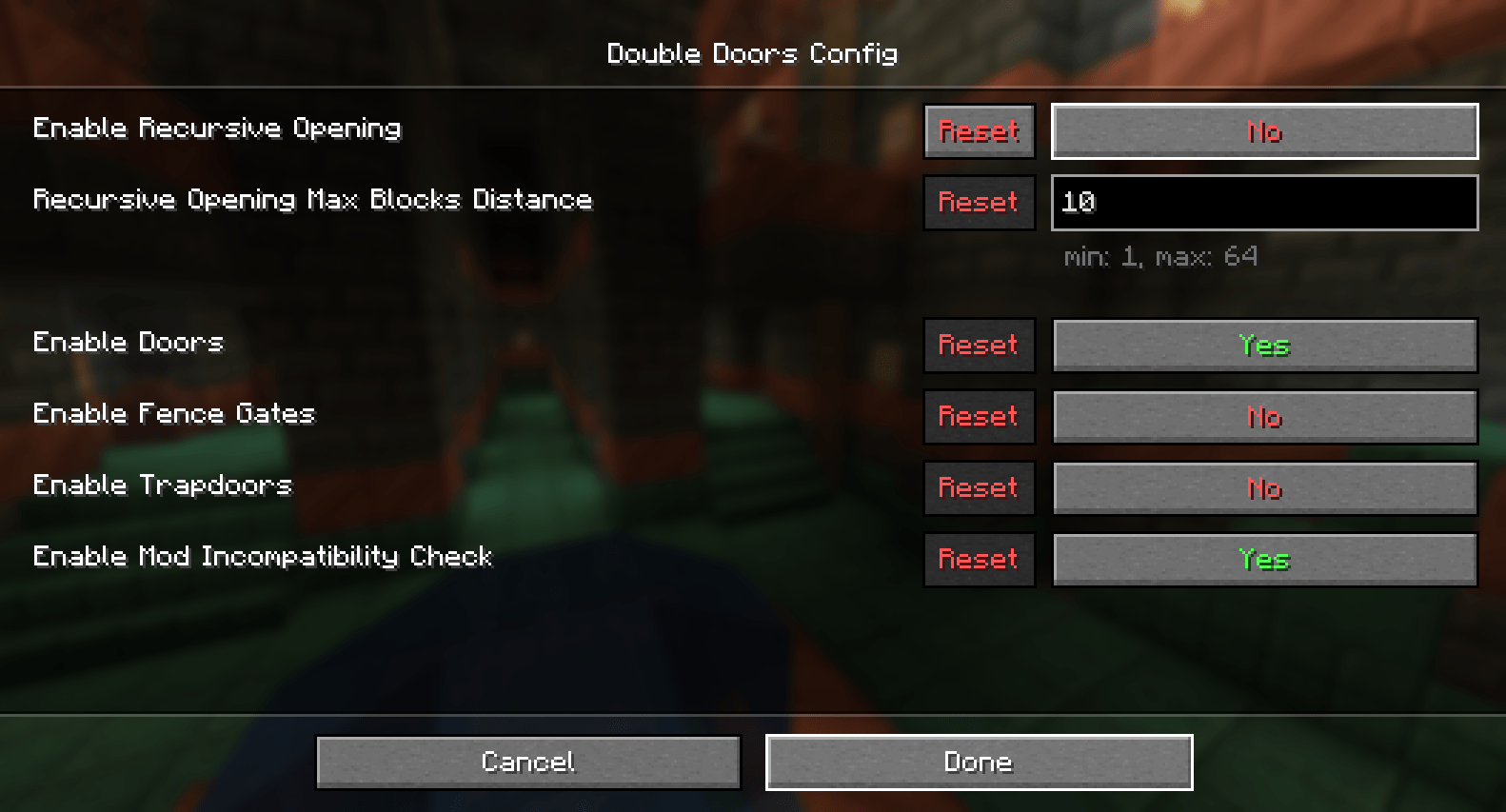
On this screen you can edit the mod's config values.

Step 4
When you've finished, click Done at the bottom to save your settings. Changes apply immediately, no restart needed.
Manual
All configuration files are generated in the config folder of your Minecraft instance, after the game has been started once with the mod installed.
Open the mod's file with any text editor, change the values you'd like and save it.
Step 1
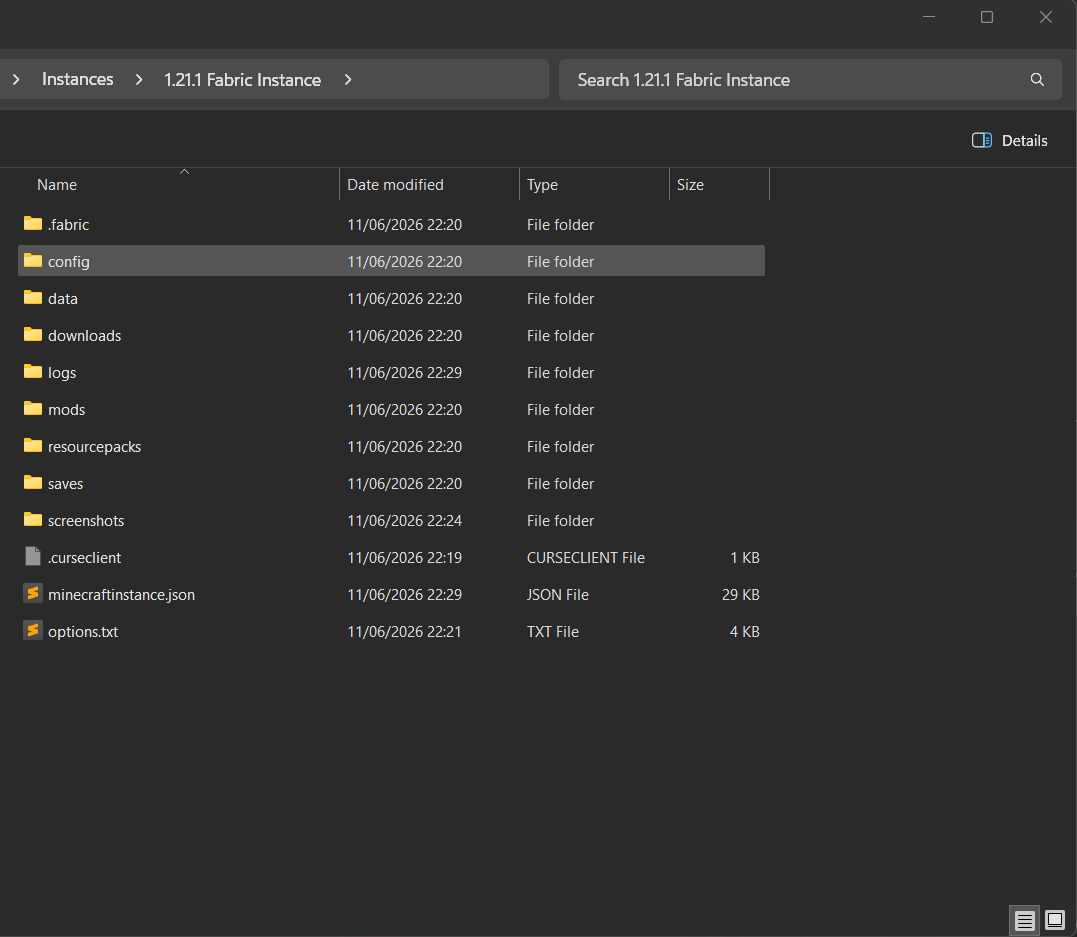
Open your Minecraft folder. This is where you put your mods or resource packs, and where your save data is located. From there, open the config folder.
Step 2
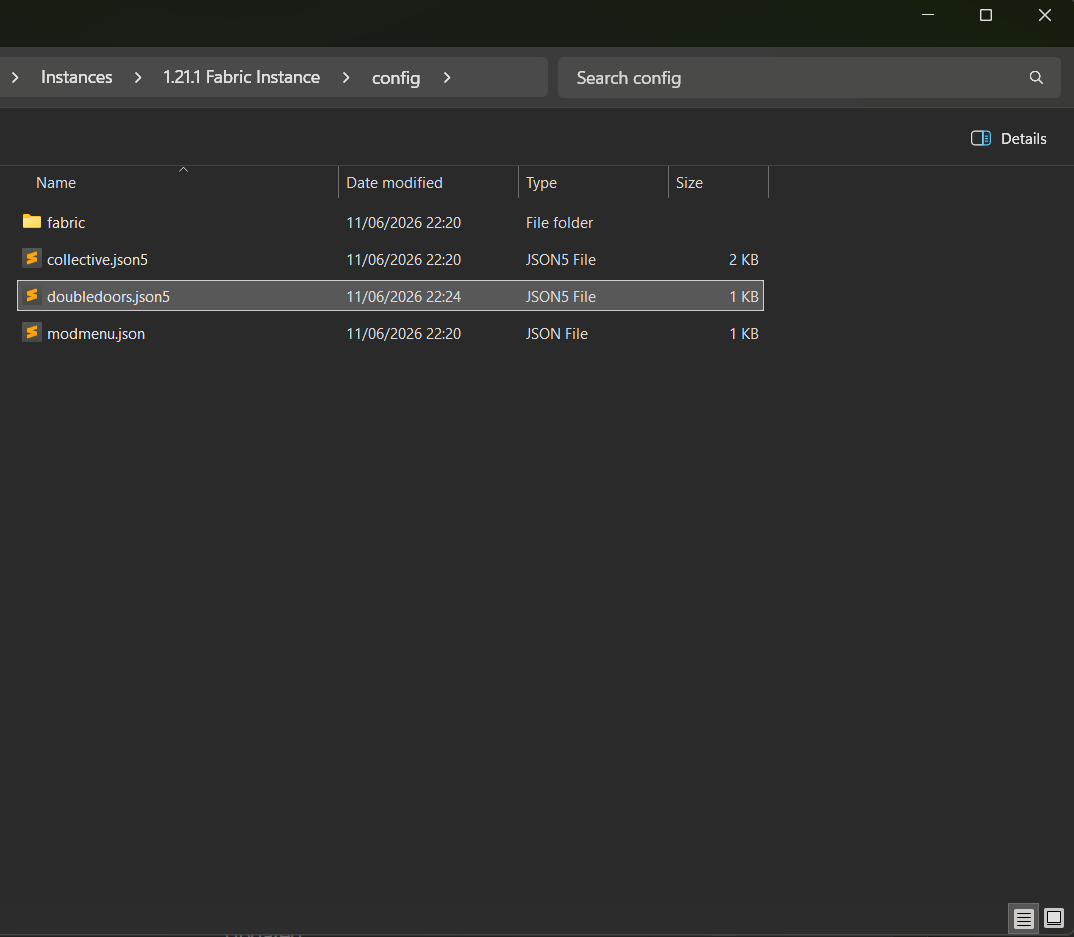
Find the config file of the mod you'd like to edit. In this case I'm opening the Double Doors config file, named doubledoors.json5. Open it with any text editor.
Step 3
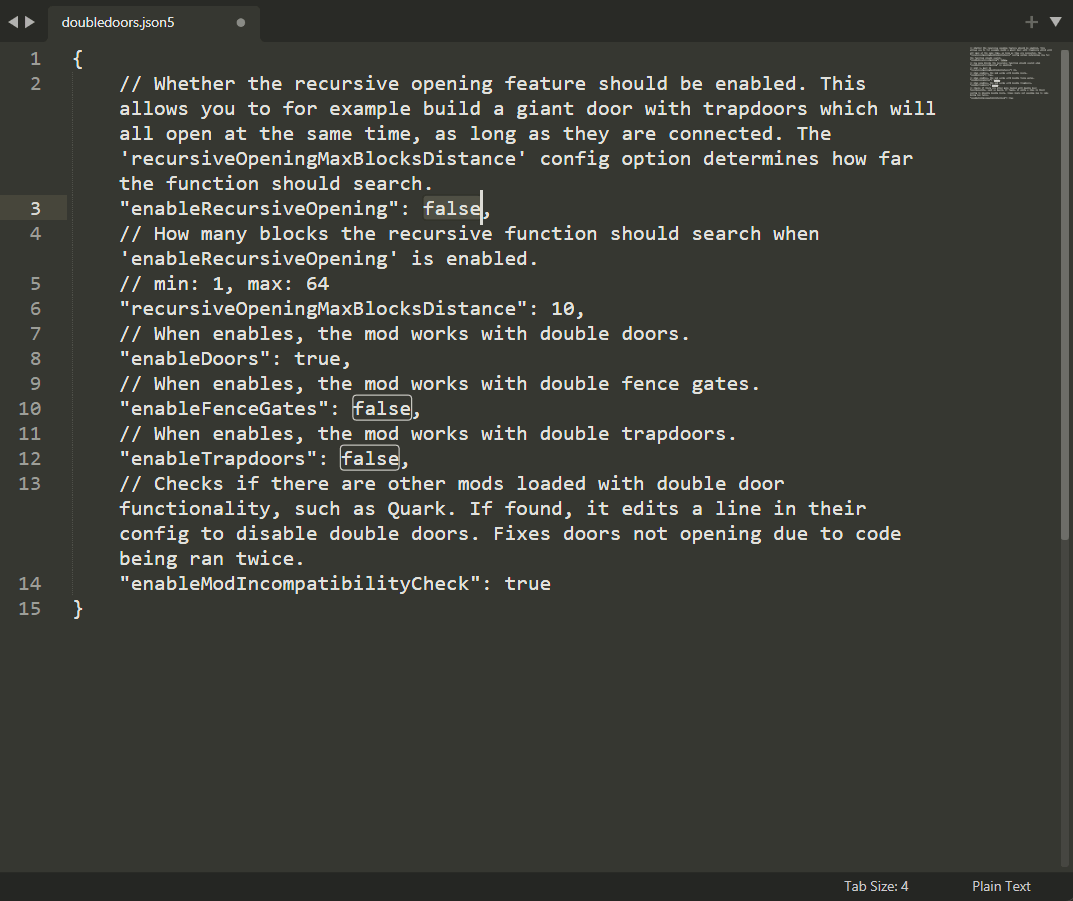
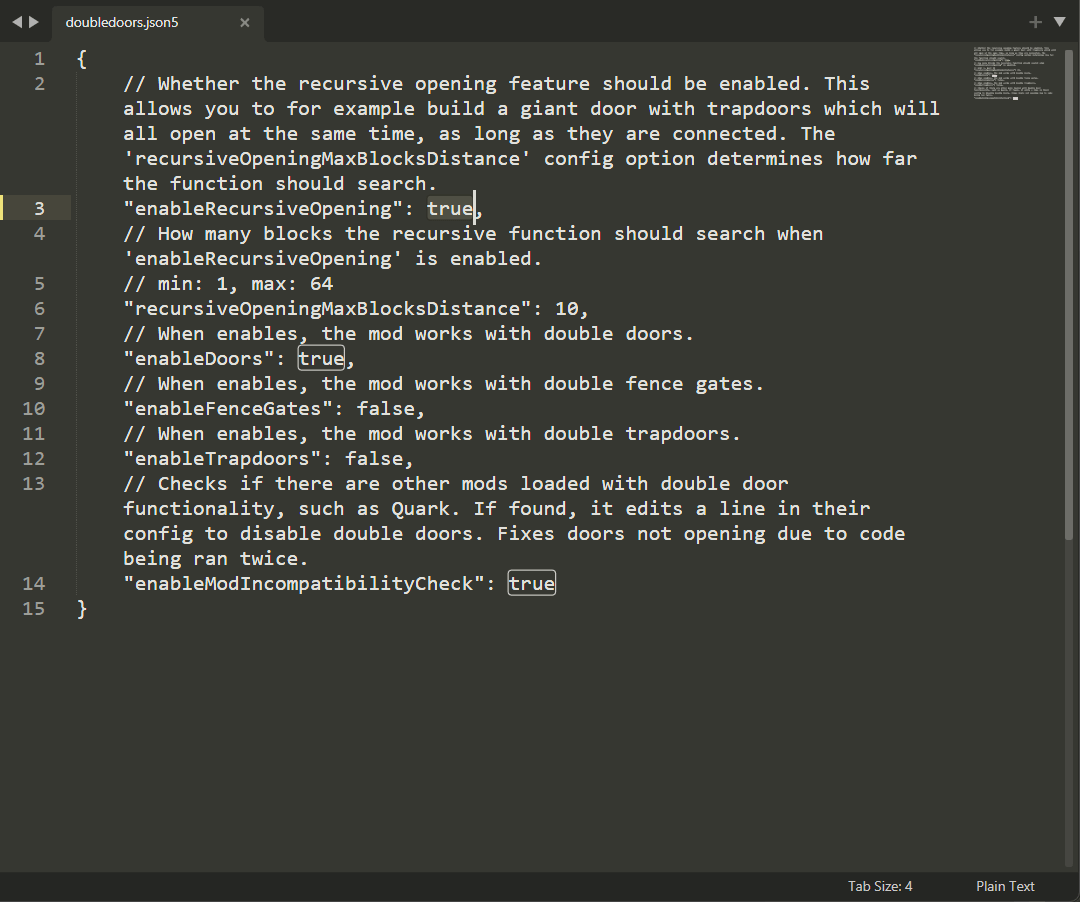
In here, find the config value you'd like to change.
Step 4
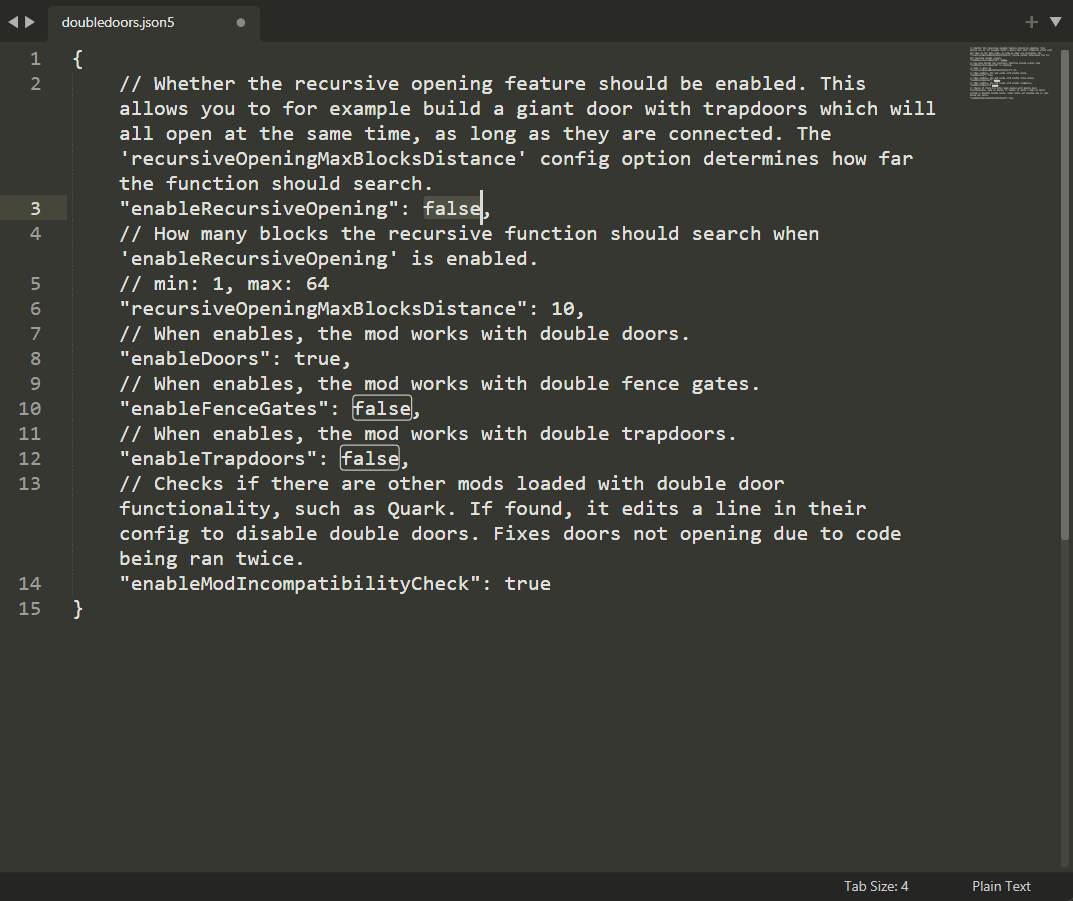
As an example, I've changed enableRecursiveOpening from true to false. Save the file afterwards. You'll need to restart your game before the changes take effect.
In-game
Forge comes with the Mods button built-in, no extra mod needed.
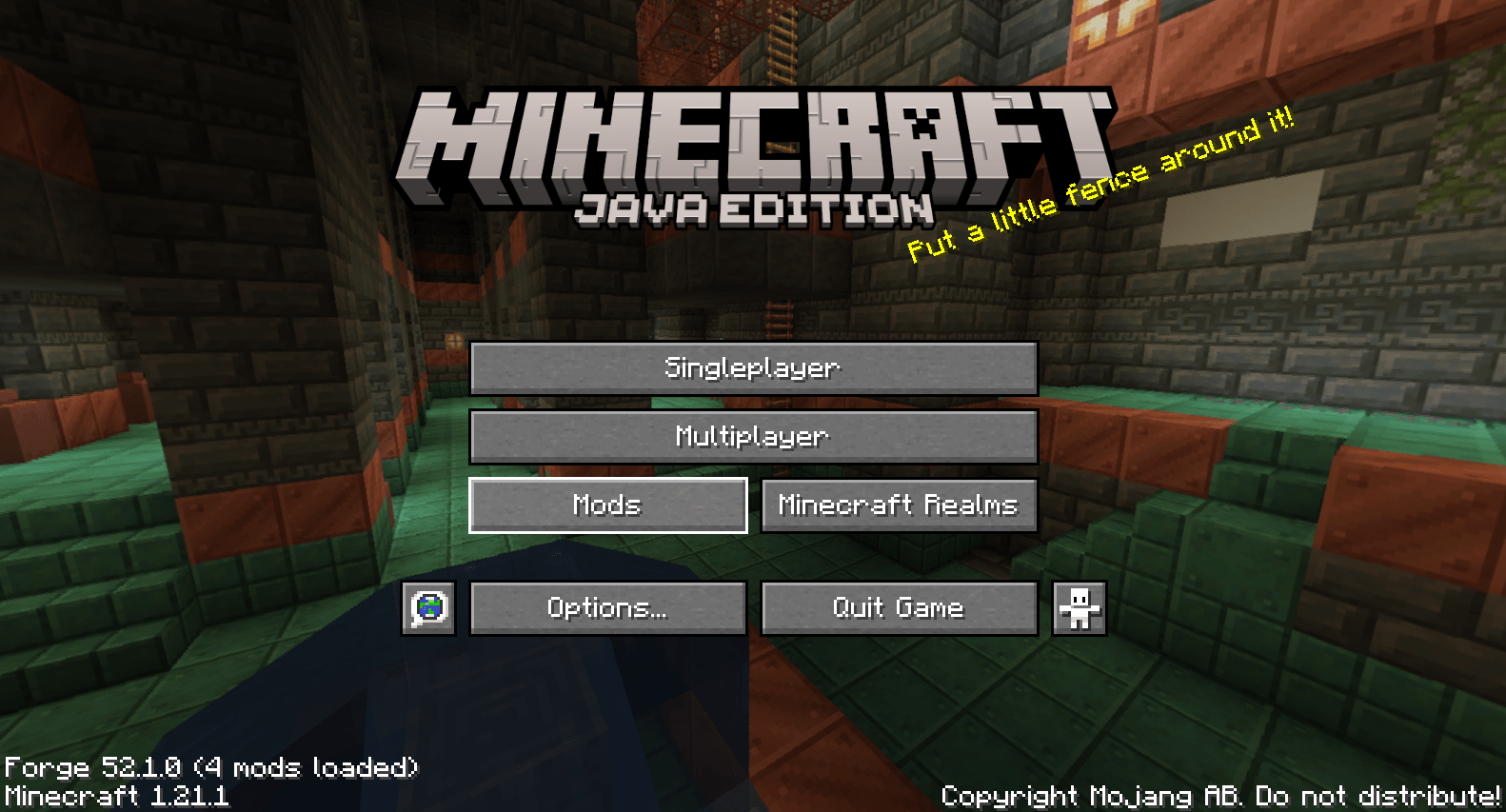
Step 1
From Minecraft's main menu, click on Mods.
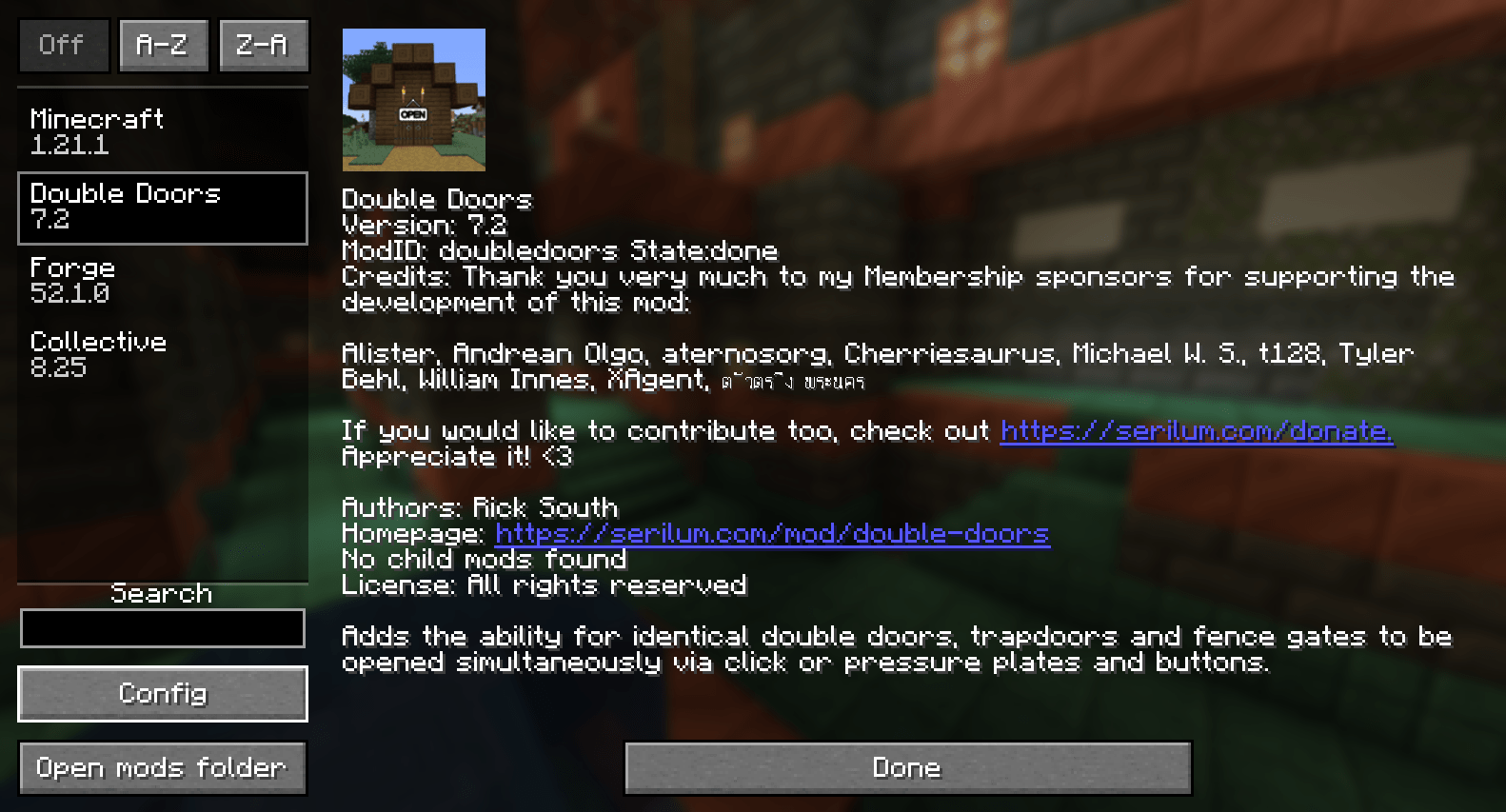
Step 2
Select the mod you'd like to configure from the list on the left. Then click the Config button in the bottom left.
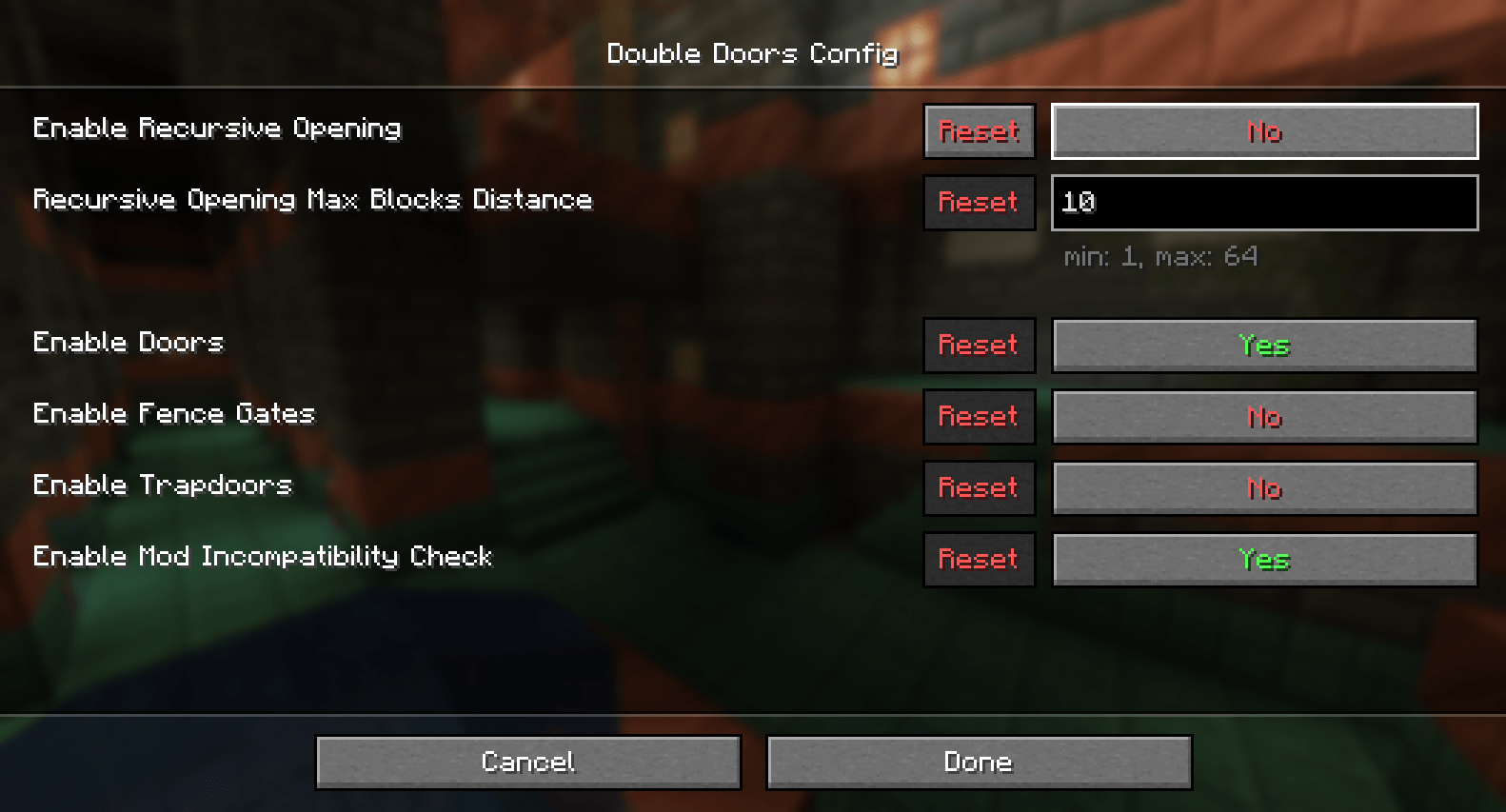
Step 3
On this screen you can edit the mod's config values.
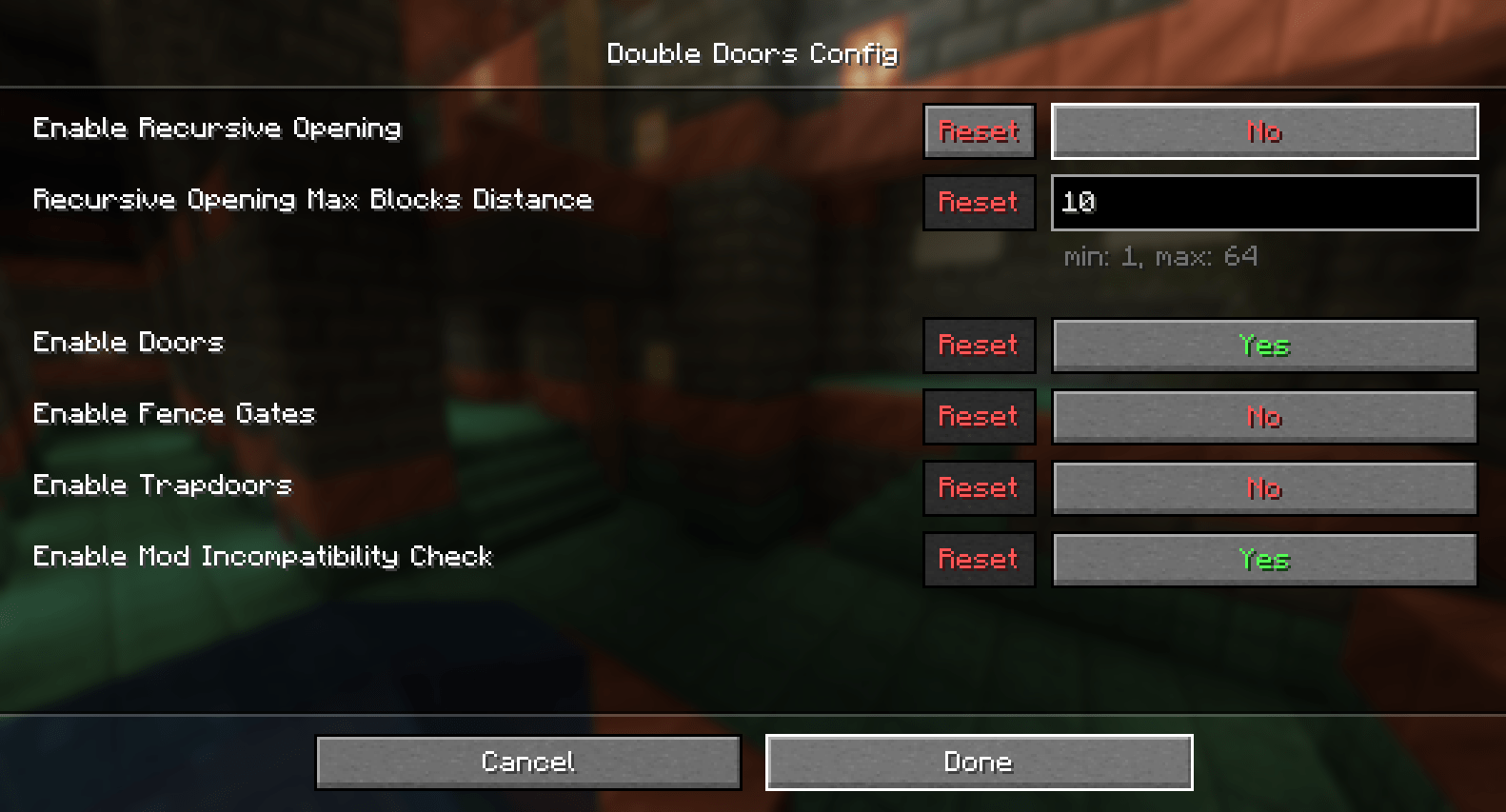
Step 4
When you've finished, click Done at the bottom to save your settings. Changes apply immediately, no restart needed.
Manual
All configuration files are generated in the config folder of your Minecraft instance, after the game has been started once with the mod installed.
Open the mod's file with any text editor, change the values you'd like and save it.
Step 1
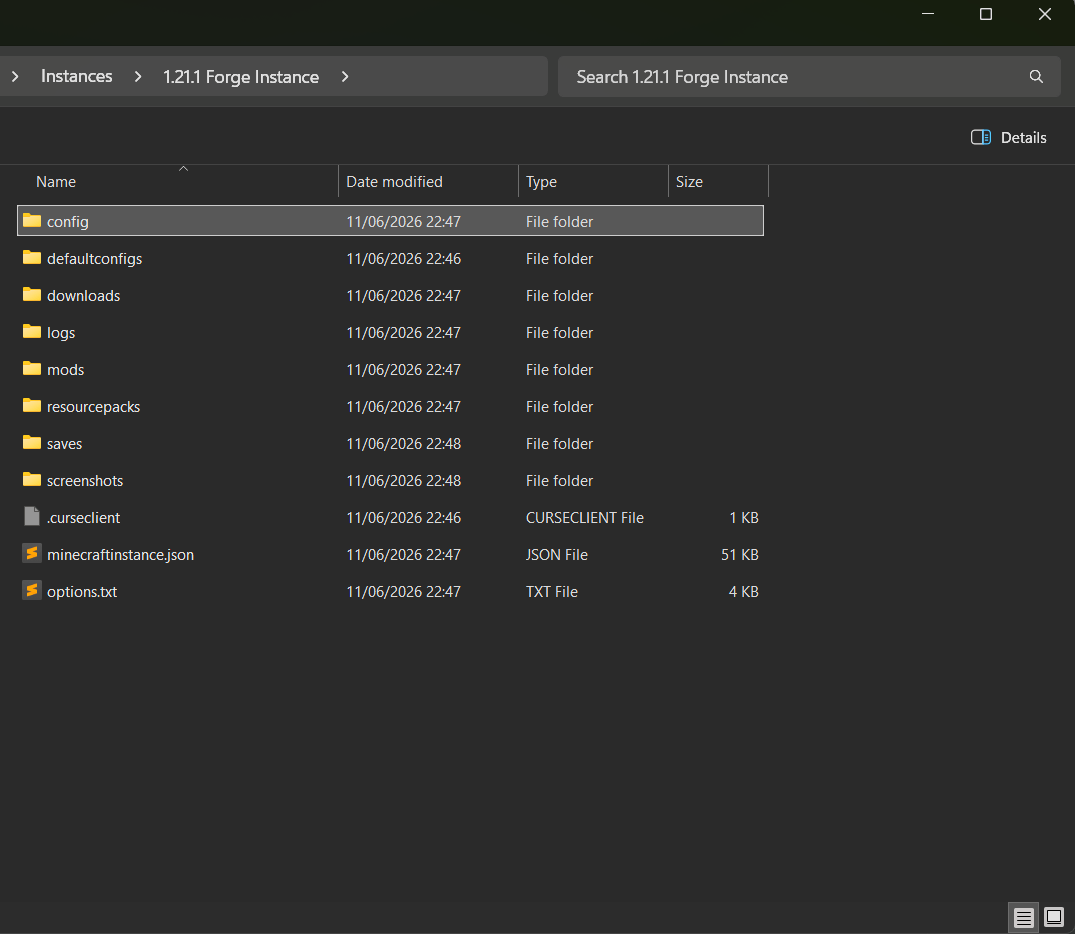
Open your Minecraft folder. This is where you put your mods or resource packs, and where your save data is located. From there, open the config folder.
Step 2
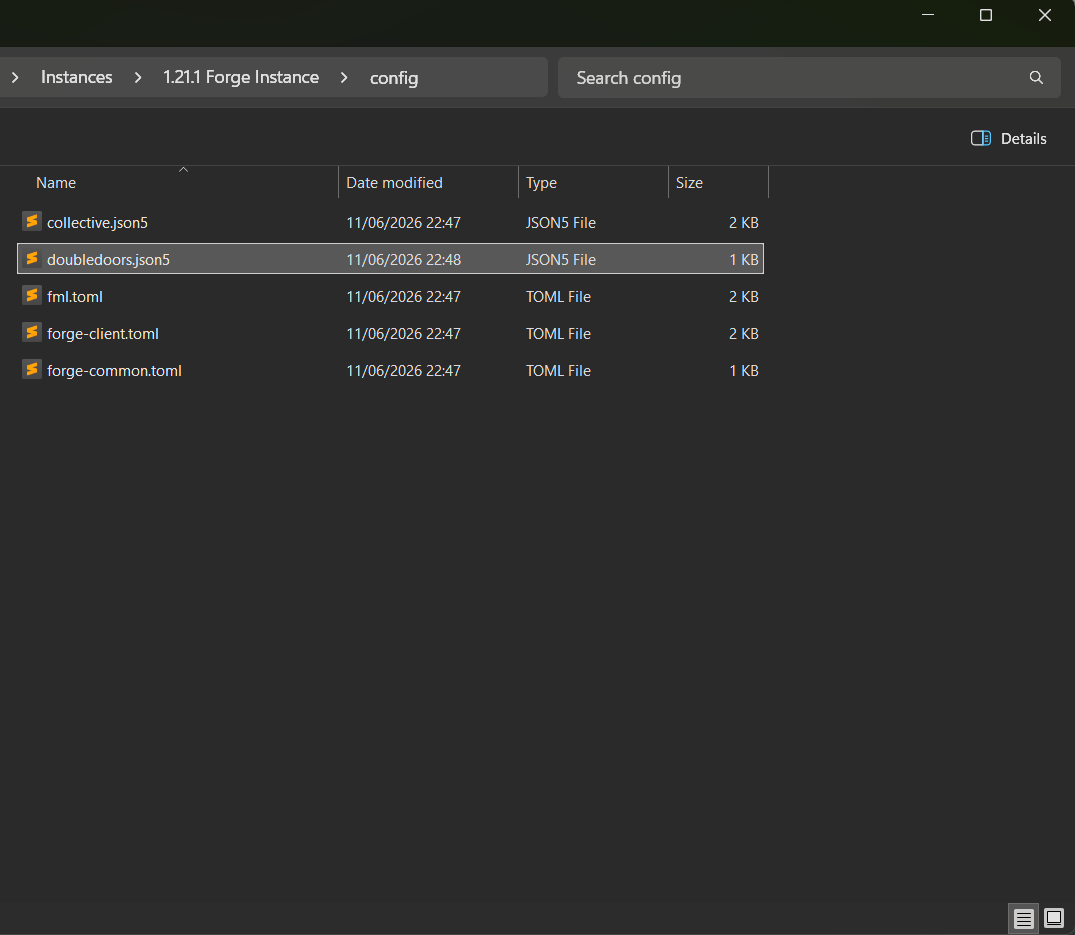
Find the config file of the mod you'd like to edit. In this case I'm opening the Double Doors config file, named doubledoors.json5. Open it with any text editor.
Step 3
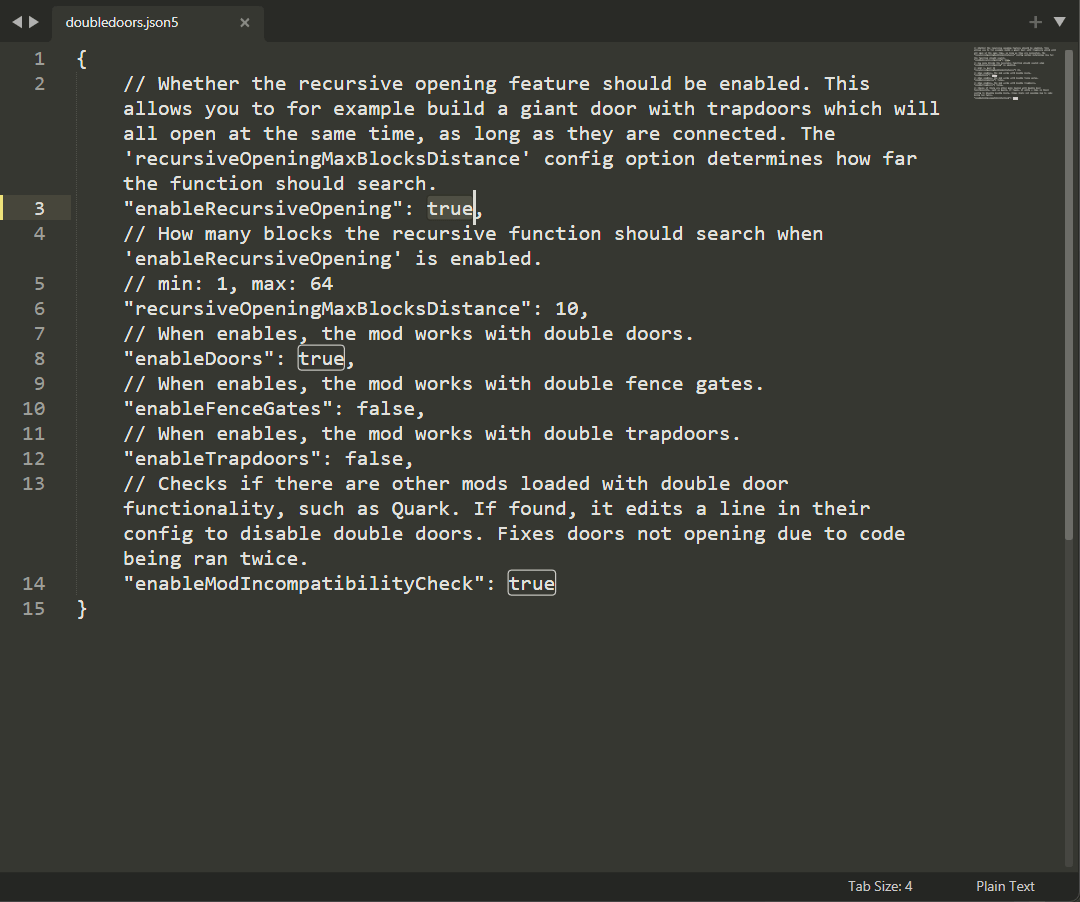
In here, find the config value you'd like to change.
Step 4
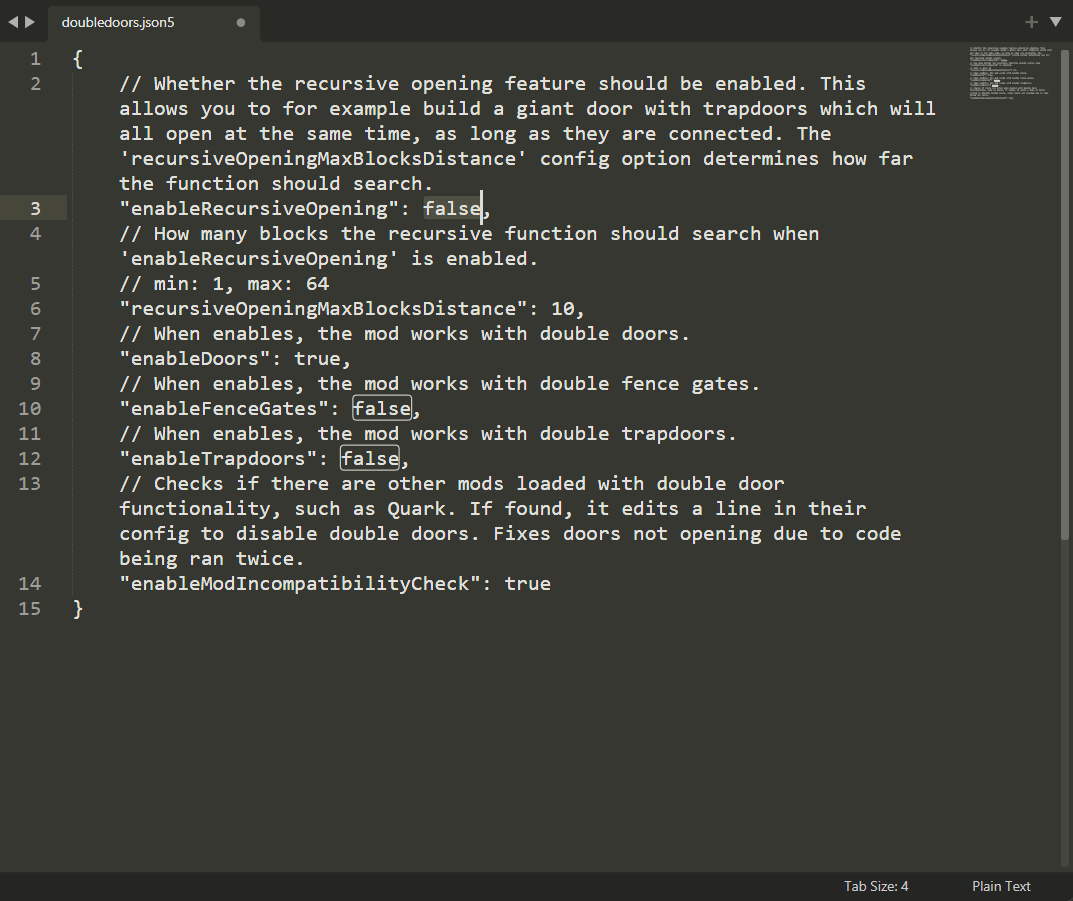
As an example, I've changed enableRecursiveOpening from true to false. Save the file afterwards. You'll need to restart your game before the changes take effect.
In-game
NeoForge comes with the Mods button built-in, no extra mod needed.
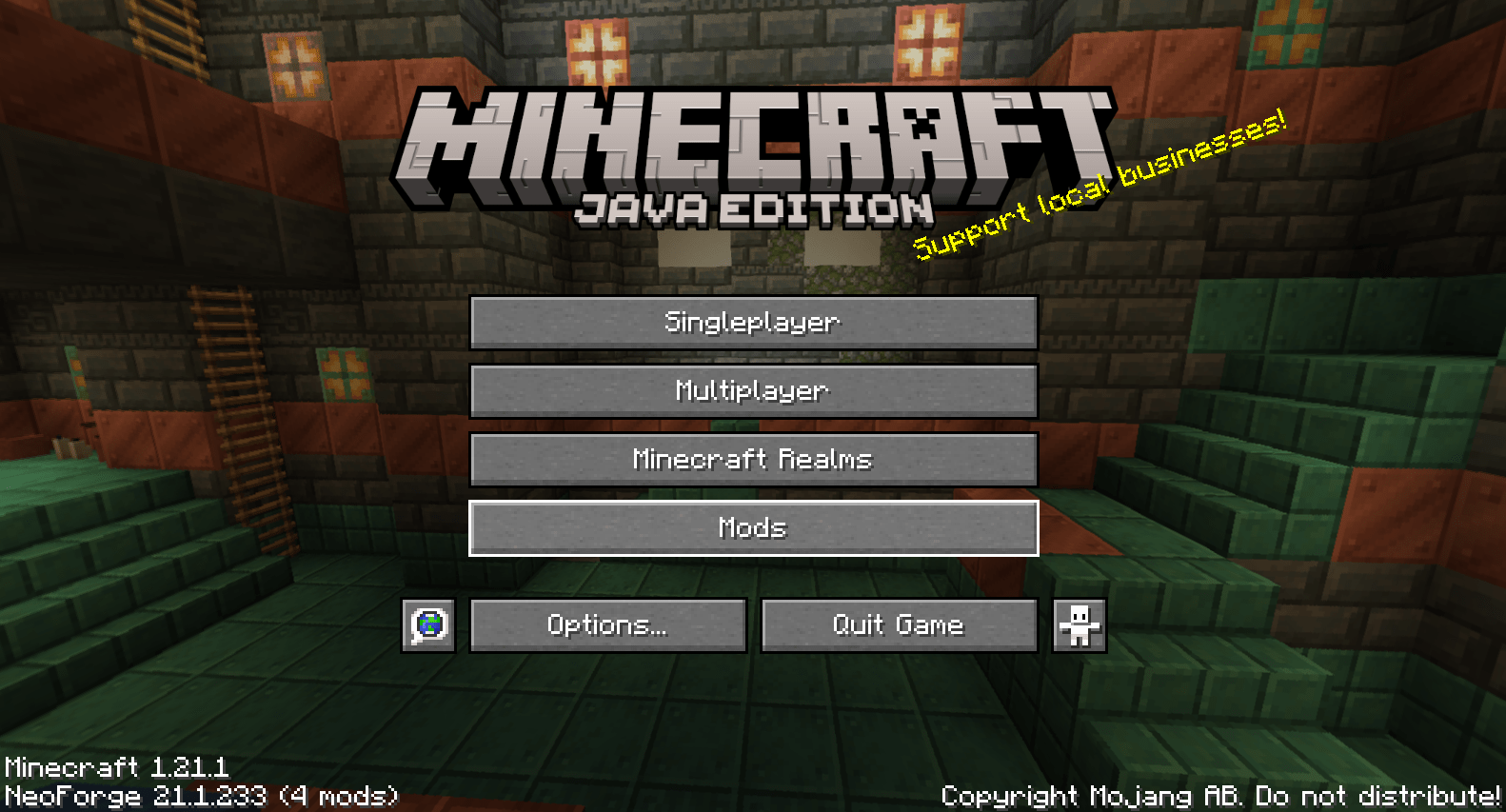
Step 1
From Minecraft's main menu, click on Mods.
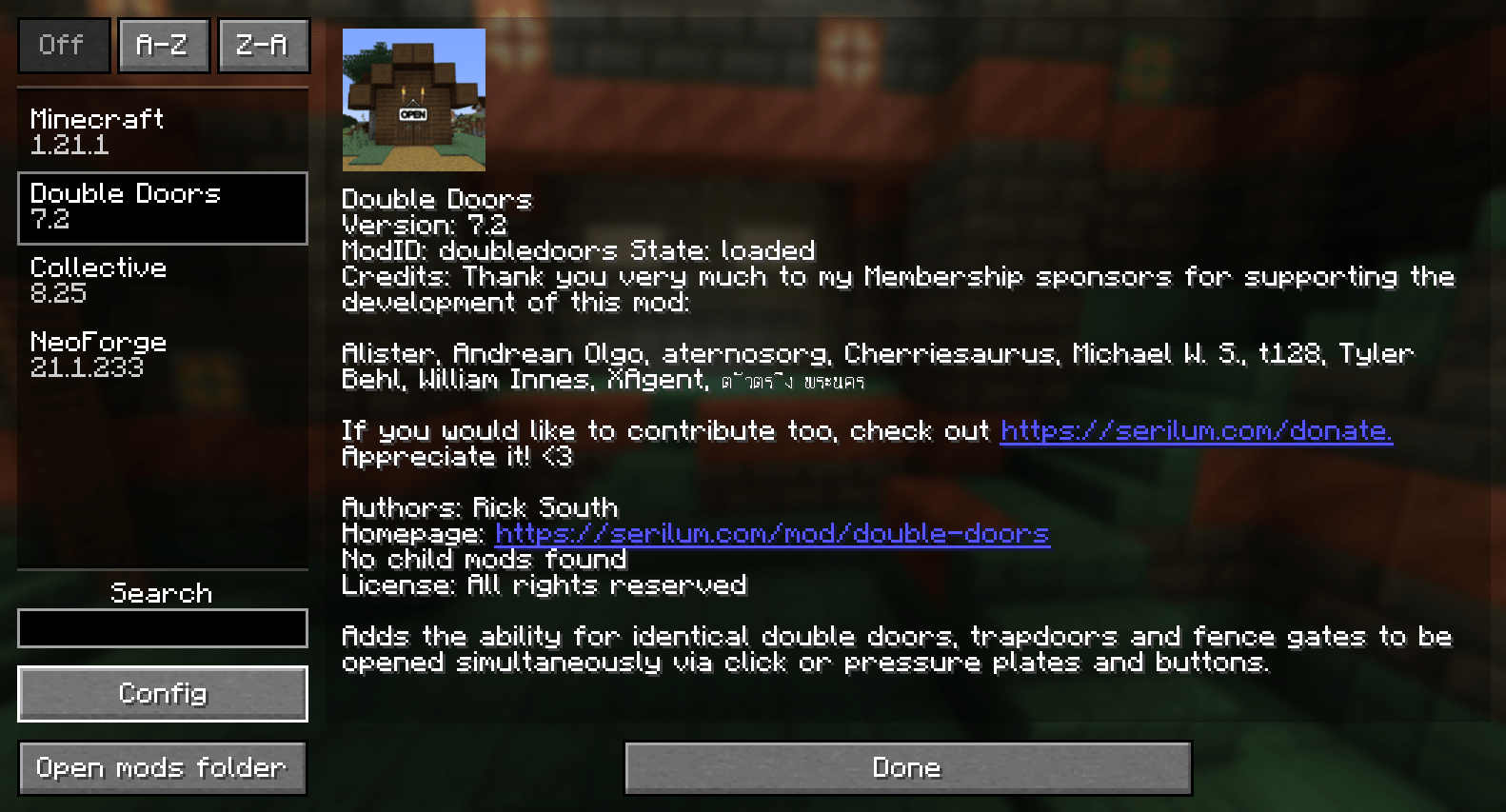
Step 2
Select the mod you'd like to configure from the list on the left. Then click the Config button in the bottom left.
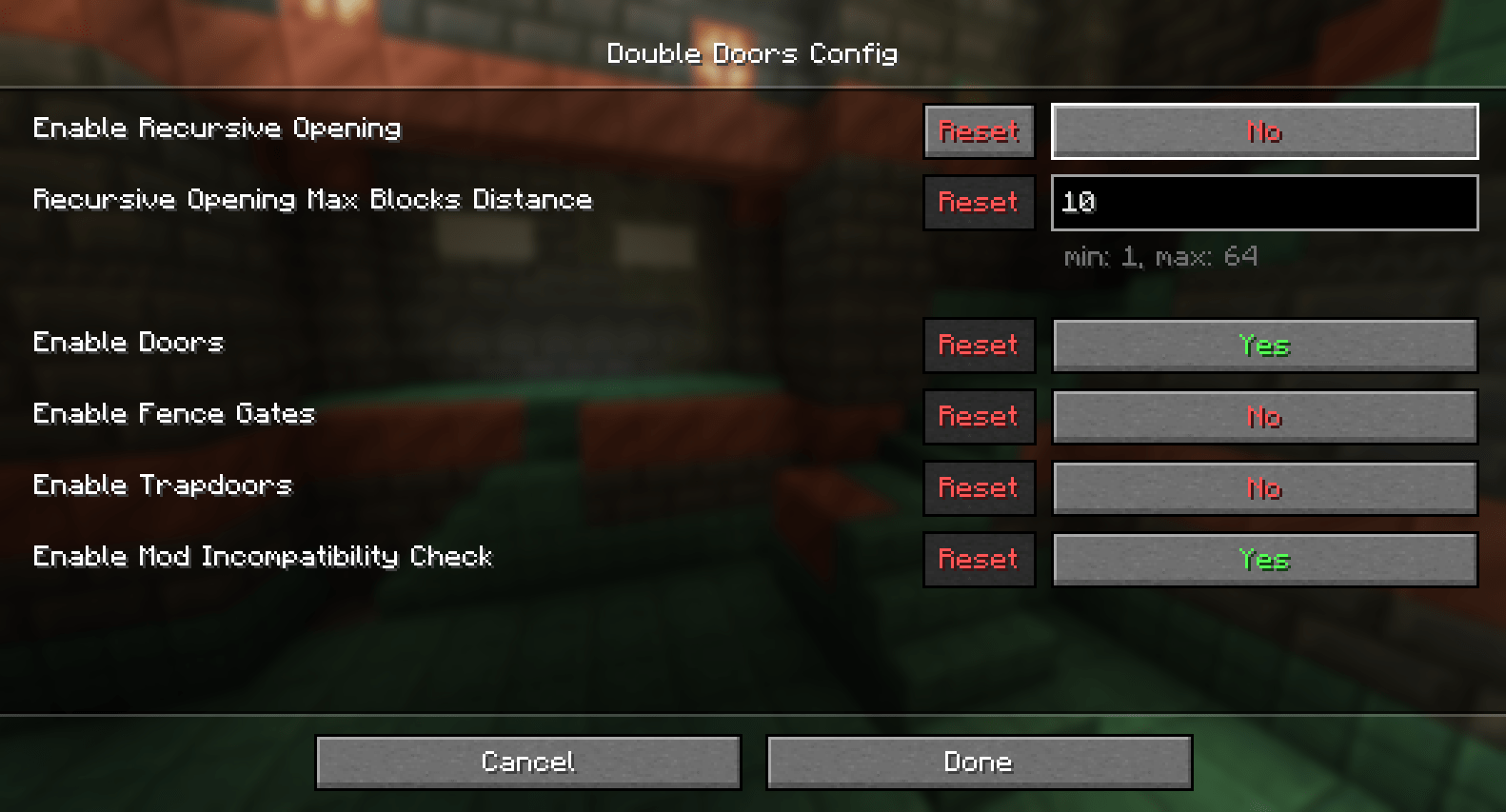
Step 3
On this screen you can edit the mod's config values.
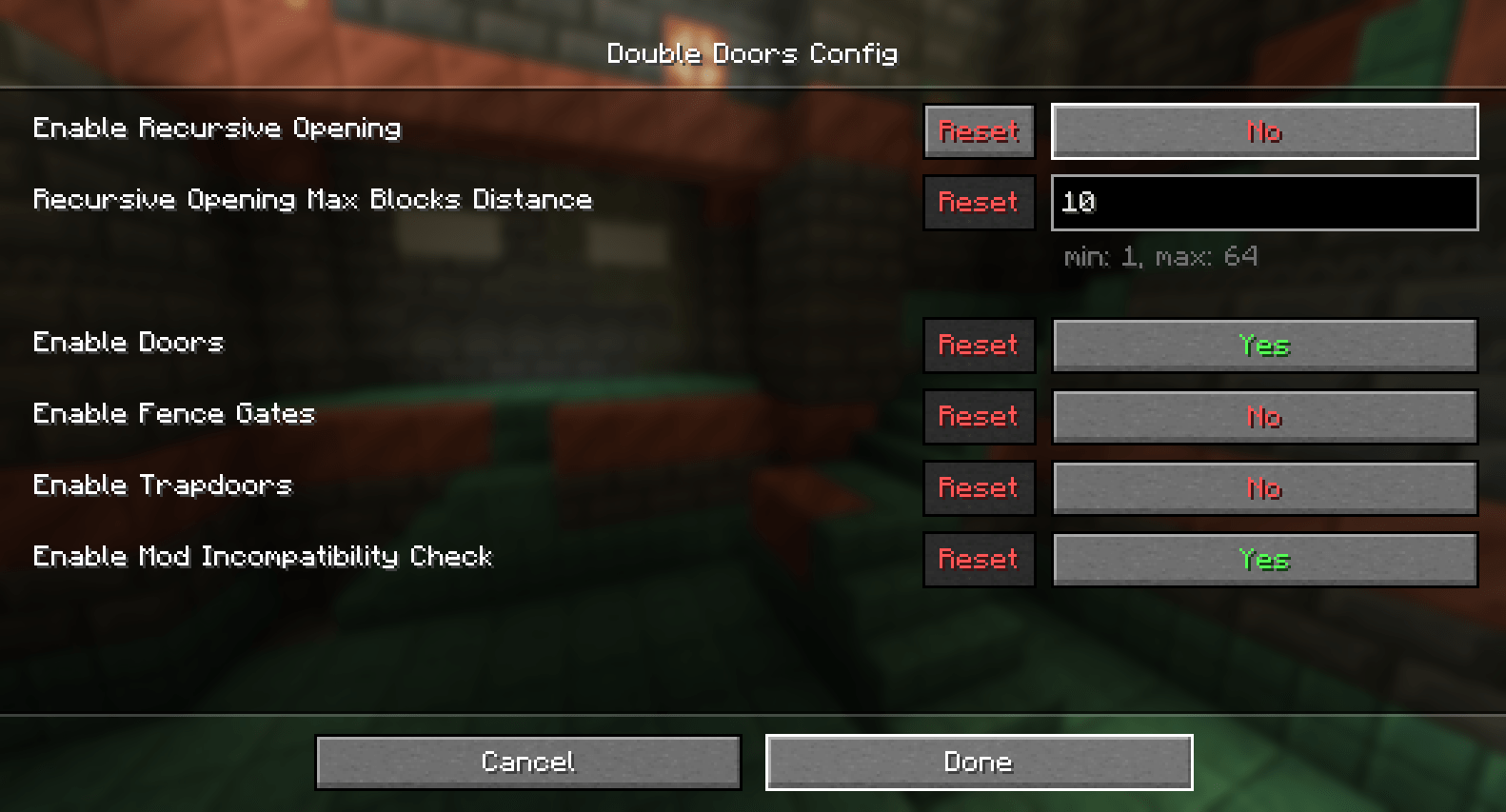
Step 4
When you've finished, click Done at the bottom to save your settings. Changes apply immediately, no restart needed.
Manual
All configuration files are generated in the config folder of your Minecraft instance, after the game has been started once with the mod installed.
Open the mod's file with any text editor, change the values you'd like and save it.
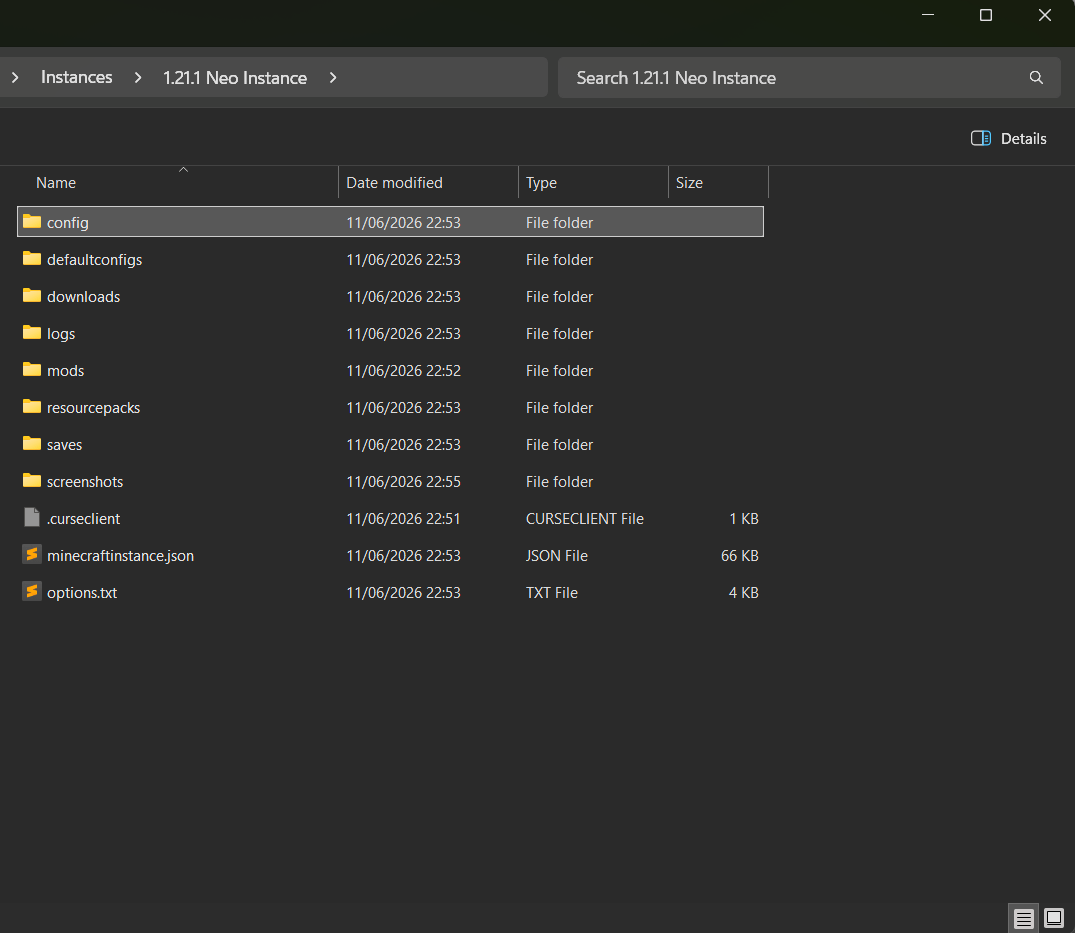
Step 1
Open your Minecraft folder. This is where you put your mods or resource packs, and where your save data is located. From there, open the config folder.
Step 2
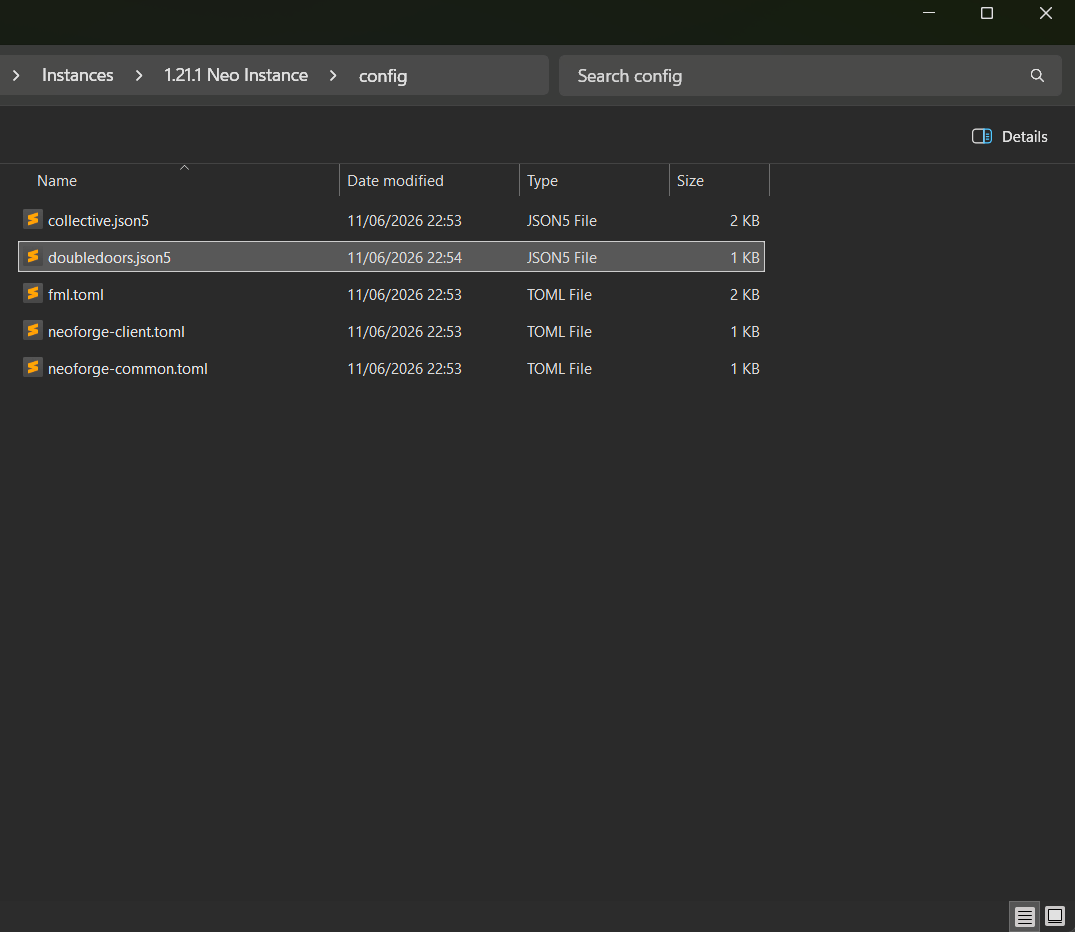
Find the config file of the mod you'd like to edit. In this case I'm opening the Double Doors config file, named doubledoors.json5. Open it with any text editor.
Step 3
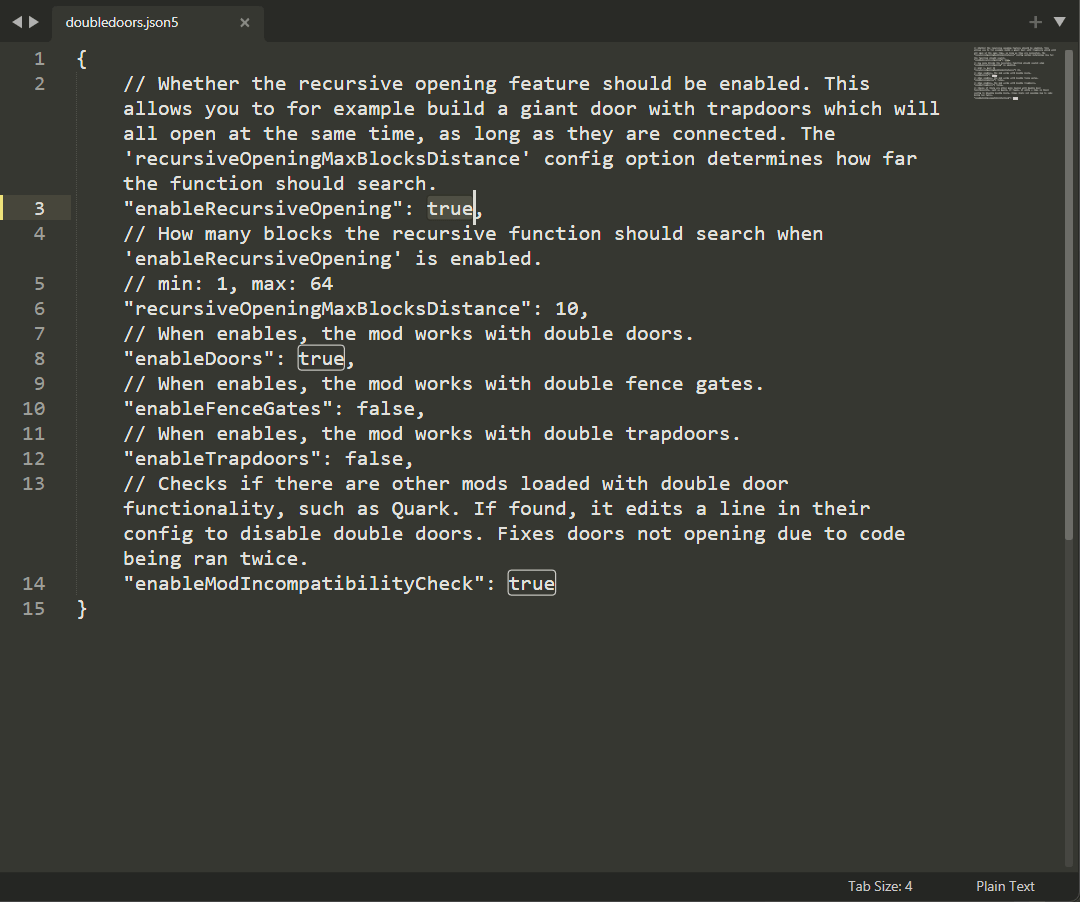
In here, find the config value you'd like to change.
Step 4
As an example, I've changed enableRecursiveOpening from true to false. Save the file afterwards. You'll need to restart your game before the changes take effect.